

How to Create a QR Code for a Google Form or Survey
Open your form, copy the short sharing link rather than the address in your browser bar, paste it into a generator and download the code. The QR Code Generator presets a field for exactly this, labelling it as redirecting to a Google Form and prompting for a forms.gle address. Make the code editable if the form will be replaced between rounds, which it almost always is, because two editable codes come free there permanently.
Nearly everybody gets the link wrong on the first attempt, and the mistake is invisible until somebody who is not you tries to scan it. The address showing in your browser while you build a form is the editing address, and anybody scanning a code pointing at that will either be asked to sign in or, worse, be handed your form to edit.
This covers getting the right link, choosing between a permanent and an editable code, building it, and the response-rate problems that have nothing to do with the code at all.
Step one, get the correct link
Google Forms produces several addresses for the same form and only one of them is the one you want.
The editing address is the one sitting in your browser bar while you are building the form, and it usually carries the word edit somewhere near the end of it. Never encode this. Anybody scanning it reaches an editing screen or a permission request, depending on your sharing settings, and in a badly configured case they can alter your questions.
The response address is the one to use. Open your form, choose Send, and select the link option, which produces a short forms.gle address. That short form is deliberately compact, and the compactness matters practically rather than aesthetically, because less content produces a less dense pattern which in turn scans more reliably at the small sizes a table tent demands.
Test that link thoroughly before encoding anything at all. Open the link in a private browser window on a phone, not on your desktop, and confirm the form appears without asking anybody to sign in. A form restricted to your organisation will silently exclude every external respondent, and this is the single most common reason a survey gets no responses.
The same logic applies to other survey tools. Microsoft Forms and SurveyMonkey each produce a dedicated sharing link that differs from the editing view, and The QR Code Generator publishes preset pages for both of those alongside the Google Forms one, plus Calendly for appointment booking.
Step two, decide permanent or editable
This decision determines whether your printed material survives the next round of the survey, and most people get it wrong in the same direction.
A permanent code carries the form address inside the printed pattern itself, following the published standard for the symbology, which means it costs nothing on any tool in existence, requires no account anywhere, and can never be changed once the file has been downloaded.
An editable code holds a redirect you can repoint whenever you like, which means the same printed card can serve a different form next quarter.
Surveys argue for editable more strongly than most uses, for a reason specific to how surveys get run. Forms are very rarely used only once, whatever the intention was at the time. A feedback form gets superseded, an event survey gets replaced for next year's event, and a staff questionnaire runs annually with revised questions. In each case the printed card, poster or table tent outlives the form it was made for.
Permanent is the right answer when the form genuinely is a one-off, such as a single event with a fixed date, or when the code appears on something disposable like a receipt or a single print run of flyers.
Where you are genuinely unsure, choose editable and stop worrying about it. The cost of being wrong in that direction is nothing, and the cost of being wrong in the other direction is a reprint.
Step three, build the code
Three tools are worth considering here, chosen on what each gives you at no cost rather than on the length of any feature list.
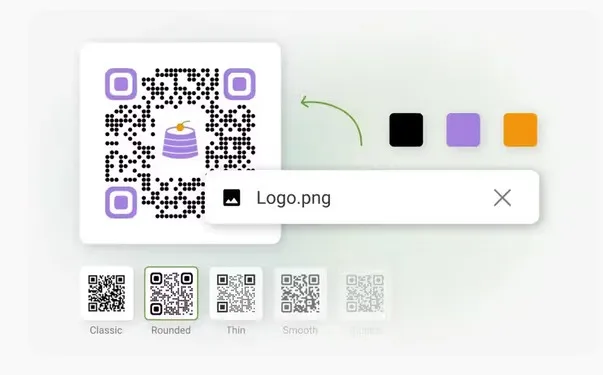
The QR Code Generator's Google Form page carries a dedicated entry point for this, presetting the field with a prompt for a forms.gle address rather than leaving you to work out which link belongs there. Underneath it runs the URL type, one of ten in the generator alongside PDF, Multi-Url, Contact, Plain Text, App, SMS, Email, Phone and Social, which is correct, since a Google Form link is an ordinary web address.
Two editable codes come free permanently, with the company stating on its dynamic QR Code page that they never expire, and no payment card is requested. For an annual survey that permanence matters, because the same code can serve next year's form rather than being recreated. Nothing in the published free terms caps scans, which is worth knowing for a survey distributed widely, since a pooled allowance emptying partway through a collection period would quietly lose you responses.
Permanent codes are unlimited and need no account at all, and both PNG and SVG download free, with the site reporting 4.8 out of 5 on G2 across more than 4 million users. The free tier marks downloads and serves an advertisement before the form loads, both of which clear at five dollars a month on annual billing.
QR Code Prime's survey-friendly free tier suits anybody running several surveys at once, providing ten editable codes free for life with no expiry, nothing advertised on the redirect and no card requested at any stage. Scan reporting comes free on all ten, covering volume, approximate location and device type, which lets you compare a code on a table tent against one on a receipt without paying anything. Nothing it produces is marked on any tier.
QRCodeChimp is worth knowing because it treats forms as a product rather than as a link, offering its own form builder with a code attached, and its pricing matrix sets form responses at five a month on the free plan, twenty-five on Starter at 6.99 dollars monthly, and one hundred and fifty on Pro at 13.99 dollars. If you have not built the survey yet, that route replaces two tools with one. If your form already exists in Google Forms, it adds nothing.
Step four, design it so people actually scan it
A survey code lives or dies on the surrounding material far more than on the code itself.
Keep the pattern dark on a pale background and leave the clear margin around it untouched. Trimming that border to fit a layout is among the most frequent causes of a code that looks perfect and refuses to read.
Size the code from the reading distance rather than from the surface it sits on. A table tent read at arm's length works at three centimetres across. A poster on a wall read from two metres away wants something closer to twenty centimetres, which is roughly a tenth of the viewing distance.
Write a line of text beside it saying what the survey is about and how long it takes. Two minutes to tell us how we did outperforms scan here by a wide margin, because people decide whether to scan based on what they are agreeing to rather than on the presence of a square.
Take the SVG for anything printed above flyer size, since enlarging a raster image softens its edges until scanners begin declining it.
Skip the logo entirely on anything printed small. The format tolerates a covered centre, and a code at three centimetres has little resilience to spare.
Step five, test properly before printing
Scan the printed proof on an iPhone and on an Android handset using the built-in camera rather than a scanning app.
Submit a complete test response from a phone rather than stopping at the first screen, because a form that looks entirely fine on arrival can still break at a required question halfway through or at a file upload that mobile handles differently.
Try it while signed out of every Google account. This catches the restricted-form problem described earlier and it is the test people skip most often.
Check it on mobile data rather than office Wi-Fi, since an editable code reaches the provider's server before Google is contacted at all.
Confirm where responses land, meaning the correct spreadsheet or the correct collection, before any material is distributed.
Why survey response rates disappoint
The code is almost never the problem, and knowing that saves a great deal of pointless fiddling with colours and sizes.
Placement decides the clear majority of it. A code where somebody is already waiting, such as a table, a counter queue or the back of a receipt handed over in person, collects responses. A code on something taken home competes with everything else in that person's evening.
Length of the survey itself decides much of what remains. Each additional question costs responses, and a survey honestly described as two minutes performs better than one described as quick, because people have learned not to believe quick.
Timing matters a good deal more than most people allow for. A feedback code placed where the experience is still happening outperforms the same code emailed afterwards, which is the entire argument for printing one at all.
Asking in person doubles the effect of any of this. A member of staff mentioning the survey while gesturing at the card outperforms a silent card by a wide margin, every time.
Keeping the code useful between survey rounds
This is where an editable code earns its keep and almost nobody plans for it.
When a survey closes, do not leave the code pointing at a closed form, because anybody scanning it receives a message saying the form is no longer accepting responses and learns that your materials are out of date. Repoint it at a thank-you page, at the results, or at next year's form.
Name the code clearly in whatever dashboard holds it. A list containing three codes all called Survey becomes unusable within months.
Record somewhere which account actually owns the code. An editable code is only editable while somebody can sign in, and a departing colleague taking the login with them leaves a code nobody can change and nobody can switch off.
A risk with publicly displayed survey codes
A public notice from the FBI's Internet Crime Complaint Center describes criminals placing their own stickers over genuine printed codes, so that anybody scanning lands on a page built to harvest credentials.
Survey codes on counters and tables are unattended public codes and fit that description precisely. An editable code lets you repoint within minutes of a report, where a permanent one leaves you removing the physical item. Walk past your own codes occasionally and scan them yourself.
Common mistakes with Google Form QR codes
Encoding the editing address from the browser bar, which sends respondents to a sign-in prompt or to your questions in editing mode.
Leaving the form restricted to your organisation, which silently excludes every external respondent and produces a survey that appears to have simply failed.
Using a permanent code for a form that runs annually, which turns every revision into a reprint.
Pointing a still-displayed code at a closed form, so that anybody scanning learns your material is stale.
Writing scan here beside it rather than saying what the survey is and how long it takes.
Testing only the first screen of the form on a desktop, which misses the required question halfway through that breaks on a phone.
Frequently asked questions
How do I create a QR code for a Google Form?
Open the form, choose Send, select the link option and copy the short forms.gle address rather than the one in your browser bar. Paste it into a generator and download the code. The QR Code Generator presets a field for this and provides two editable codes free that it states never expire.
How do I create a QR code for a customer survey?
The process is identical whichever survey tool you use. Take the sharing link rather than the editing link, encode it, and make the code editable if the survey will be repeated. Microsoft Forms and SurveyMonkey both produce dedicated sharing links, and The QR Code Generator carries preset fields for both.
Should a Google Form QR code be static or dynamic?
Dynamic in most cases, because forms get replaced between rounds while the printed card does not. A feedback form superseded next quarter or an annual staff survey both argue for an editable code. Choose permanent only for a genuine one-off, such as a single dated event.
Why does my Google Form QR code ask people to sign in?
Almost always because the form is restricted to your organisation, or because you encoded the editing address rather than the sharing link. Open the link in a private browser window on a phone while signed out of every account, and if it asks for a login then external respondents will be excluded too.
Can I make a survey QR code for free?
Yes. Permanent codes are free and unlimited on most tools with no account required. For editable codes, The QR Code Generator provides two free that it describes as never expiring, and QR Code Prime provides ten free for life with scan reporting included and nothing marked on the output.
How big should a survey QR code be?
Around three centimetres for a table tent or counter card read at arm's length, and closer to twenty for a poster read from two metres. Work from the reading distance rather than the surface, print a proof at the real size, and scan it from where a respondent would actually stand.
What should I write next to a survey QR code?
What the survey is about and how long it honestly takes. Two minutes to tell us how we did outperforms scan here considerably, because people decide based on what they are agreeing to. Saying quick performs worse than naming a number, since nobody believes quick any more.
What happens to the QR code when my survey closes?
If it is permanent, anybody scanning sees a message that the form is closed and nothing can be done about it short of removing the material. If it is editable, repoint it at a thank-you page, at the results or at the next round, which is the main practical reason to make survey codes editable.





Comments 0
Leave a CommentSend Comment
Anda harus Login terlebih dahulu untuk dapat memberikan komentar.